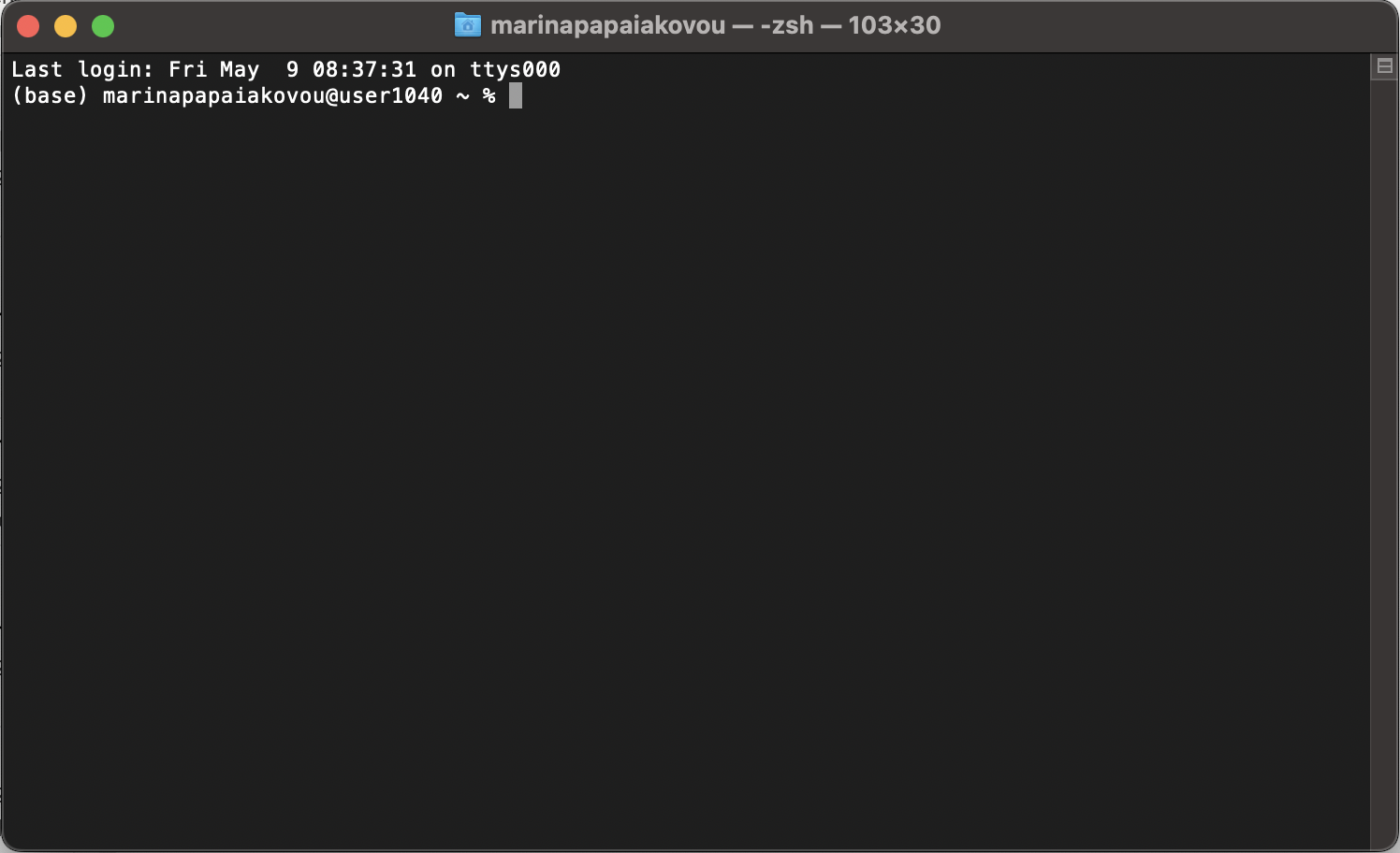
Installing Linux on your own computer is a great way to access and start learning Linux. Here are some simple ways to access a Linux terminal on Windows and Mac.
Windows
To access a Linux terminal on Windows, we can use Windows Subsystem for Linux (WSL). It allows you to run a Linux distribution directly on Windows.
Open PowerShell (search for “PowerShell” in the Start menu). Note if you are on a museum laptop, you will need to open PowerShell as an Administrator (search for “PowerShell” in the Start menu, right-click, and select “Run as administrator”).
Run the following command to enable WSL:
wsl --install
Once WSL is installed, restart your computer.
To open a Linux terminal, open Powershell and run the following command:
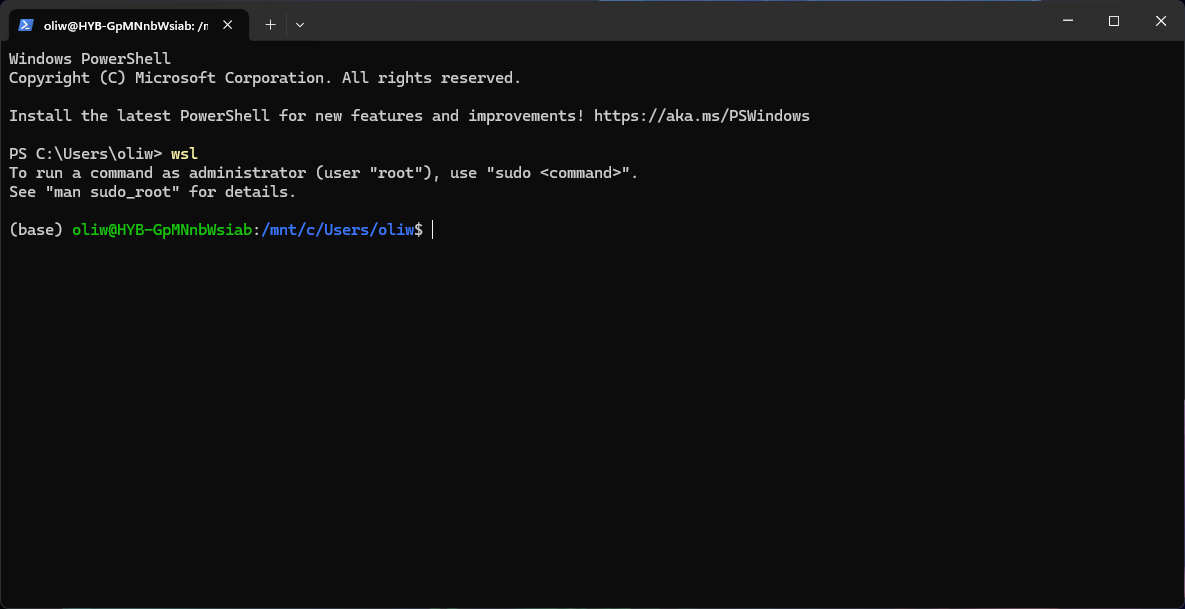
wsl
You should now have a terminal which looks like this:
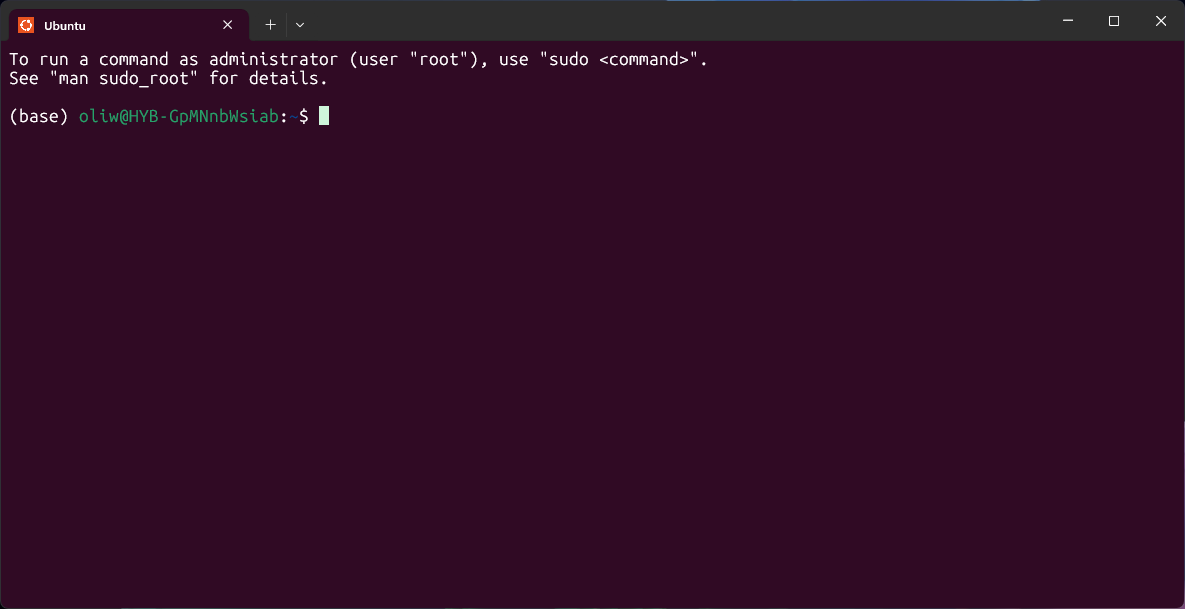
Windows also comes with an application called Terminal, which allows you to select an Ubuntu terminal.
Mac
Mac comes with a built-in terminal application that allows access to a Unix-based shell which is very similar to Linux.
You can find it by clicking on the Spotlight search icon (top-right corner) and typing “Terminal”. Alternatively, navigate to Applications > Utilities > Terminal.